

Before you start
Saving the finished video to your Mac needs a paid plan. An active trial can share a clip but cannot save the finished video.Export a video
1
Open export
Select
Export in the editor, or press ⇧⌘E.2
Select Video
Select
Video at the top of the export dialog.3
Choose the range
Select
Full clip or the available timeline selection.4
Choose video settings
Select the quality and frame rate. Open
Advanced to select the compression.5
Save the file
Select
Save to Downloads.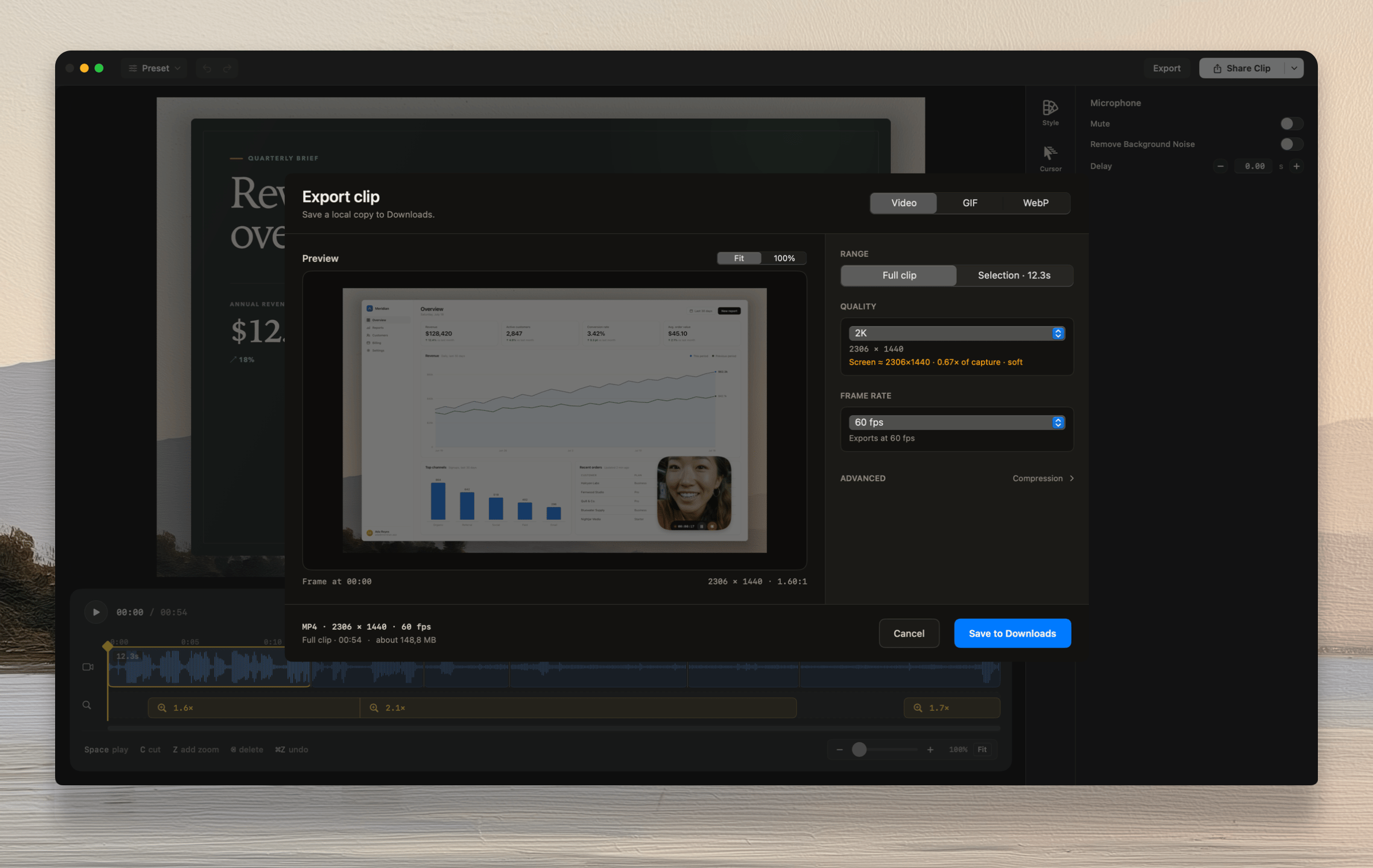
Match recording to keep the recorded frame rate. The preview shows the output dimensions before export.
Tellclip writes the exported file to Downloads. The source recording stays in Recent Clips.
Export an animation
SelectGIF or WebP. Then select Compact, Balanced, or Sharp.
Open Advanced to set the maximum width and frame rate. A large GIF causes a memory-use warning.
Common errors
Export is not available during a trial
UseShare Clip to send a link. Saving the finished video to the Mac needs a paid plan.
The exported screen content looks soft
Select a higher quality. The export dialog marks a reduced screen raster assoft.
A GIF is too large
SelectUse WebP, or select a smaller width and frame rate.