

Open the editor
Click the screenshot card, or selectEdit on the card. You can also select Open in Editor from Recent Screenshots.
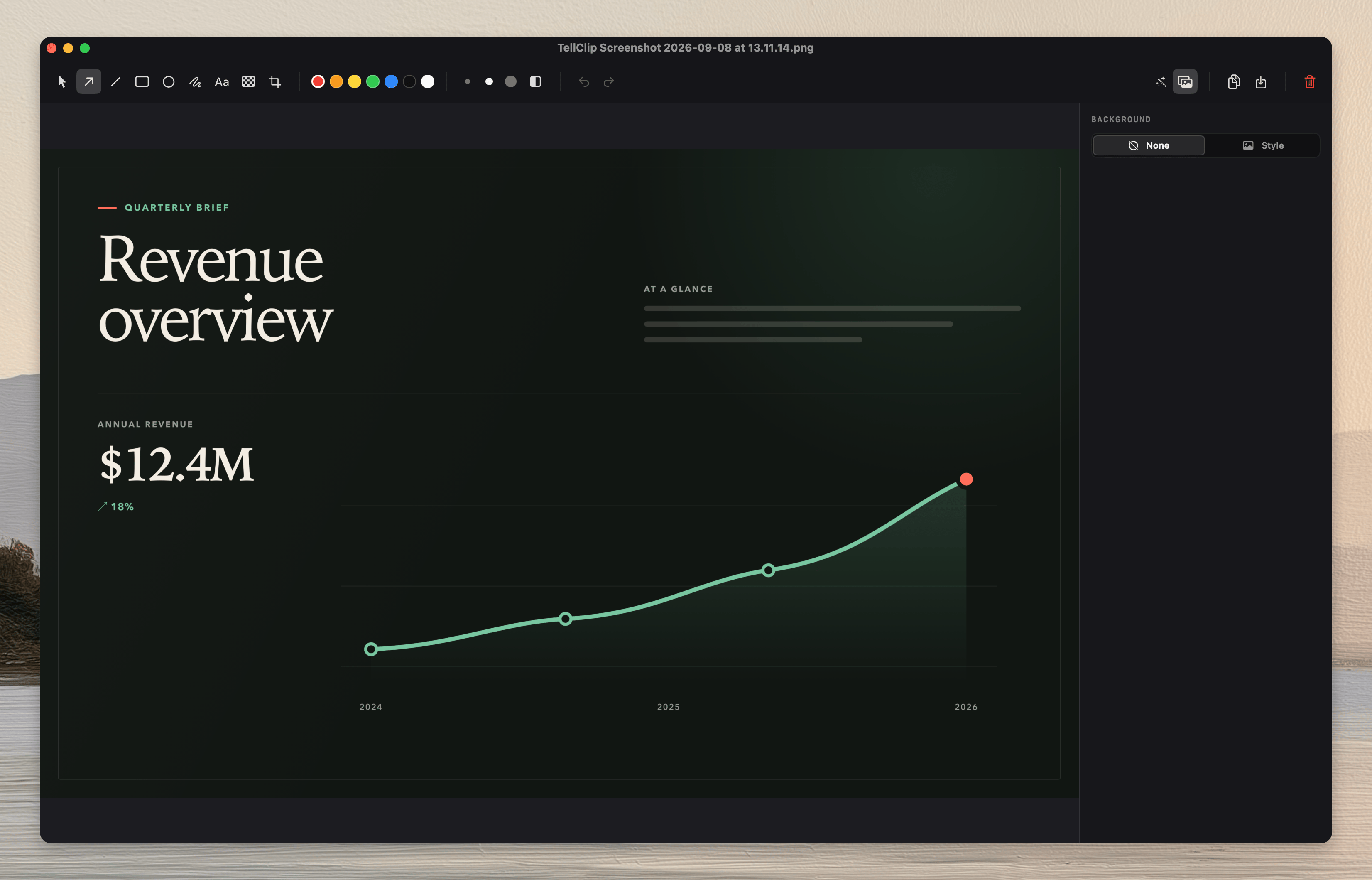
Add an annotation
1
Select a tool
Select
Arrow, Line, Rectangle, Ellipse, Pen, Text, or Pixelate.2
Draw the annotation
Drag on the screenshot. For text, click the screenshot and enter the text.
3
Save the result
Press
⌘S, or select Save to file.Change an annotation
Select a color and stroke width before you draw. For a solid rectangle or ellipse, pressF.
To move or resize an annotation, press V. Then select the annotation.
Tool shortcuts
Crop a screenshot
1
Select Crop
Press
C, or select Crop.2
Set the crop
Drag a crop edge or corner. Tellclip can snap the crop to captured window bounds.
3
Apply the crop
Press
Return.Esc before you apply the crop to discard the pending crop.
Common errors
Typing changes the tool
Click the text box before you type. Tool shortcuts do not run while the text box has focus.An annotation is difficult to select
PressV. Then click its line or visible area. The most recently drawn matching annotation is selected first.
You closed the editor without saving
OpenRecent Screenshots from the Tellclip menu. Then reopen the screenshot from its local history copy.