

Set the default for your organization
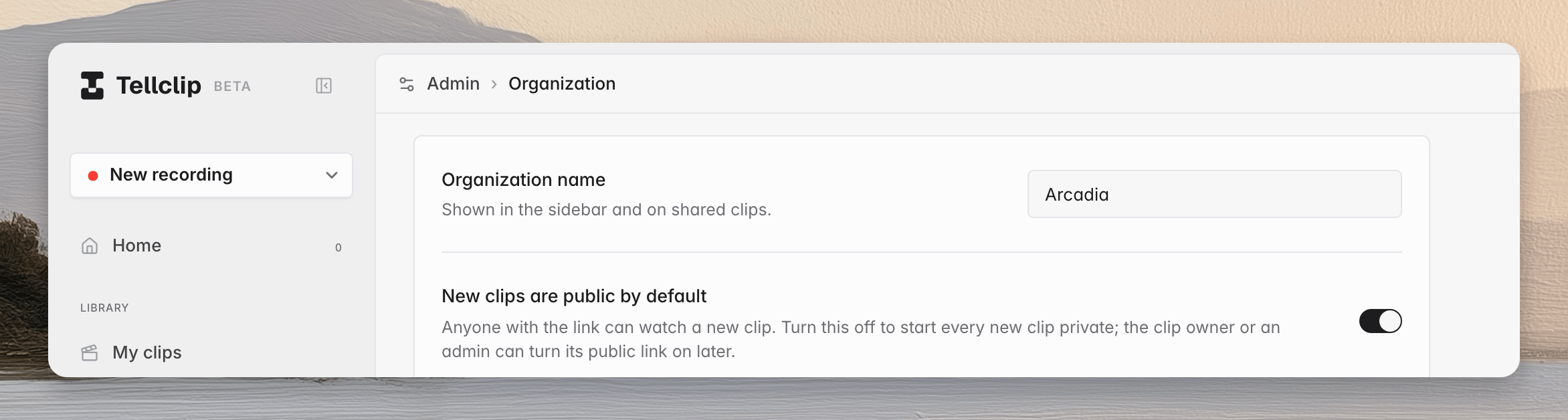
An organization owner or admin can choose whether new clips start with public links enabled.- In the Tellclip web app, open Organization under Admin in the sidebar.
- Find New clips are public by default.
- Turn it on for public links, or off for team-only access.
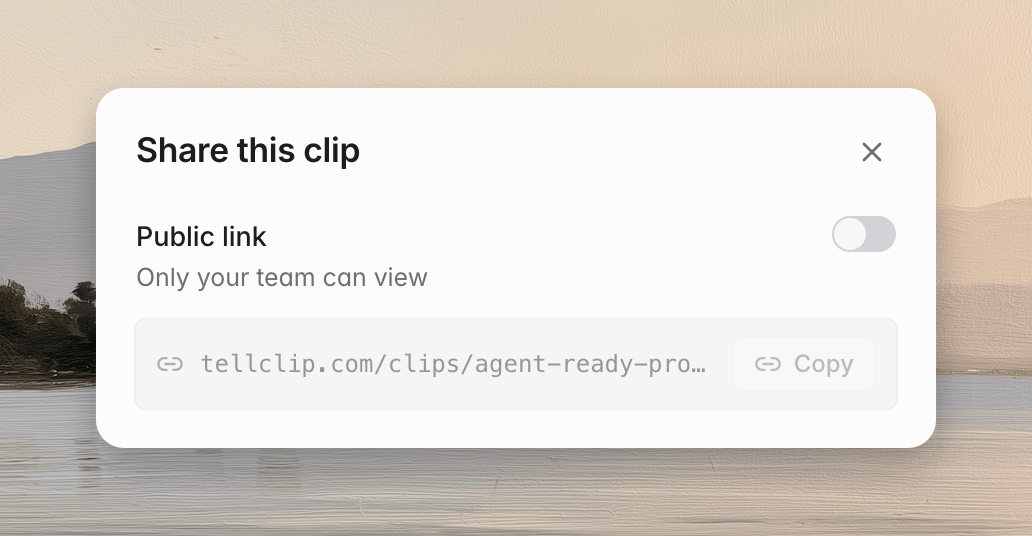
Team-only access
WhenPublic link is off, only signed-in members of the organization can open the clip.
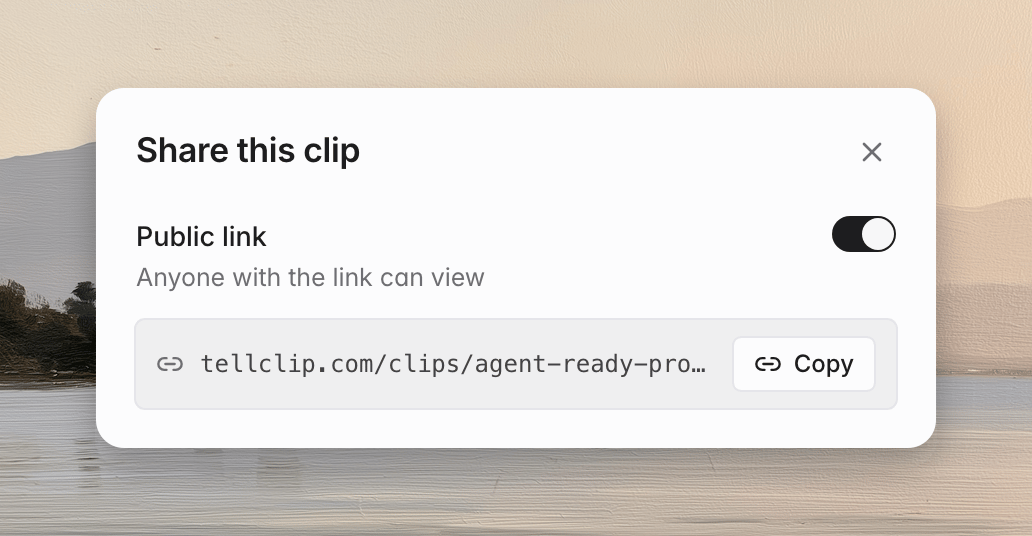
Public-link access
WhenPublic link is on, anyone with the link can watch the clip. A public link does not require a Tellclip account.
Change access
1
Open the clip
Open the clip page while you are signed in.
2
Open sharing settings
Select
Share.3
Set the access
Turn
Public link on or off.Anyone with the link can view or Only your team can view.
The clip owner or an organization admin can change sharing settings. Other members can view the current setting.
Turning off the public link also disables the public player and embed. Organization members can still open the team page.
Common errors
The Public link switch is disabled
Ask the clip owner or an organization admin to change the setting.An embed stops playing
Make sure thatPublic link is on. Embedding needs public-link access.