Add a canvas background around the recorded screen. Background changes appear in the preview and exported video.

Choose a theme

1

Open Themes

In Style, select Themes.
2

Choose a theme family

Select Dune, Monet, Plein Air, Contour, Still, Haze, or Linen.
3

Choose a background

Click a background tile, or click Random for a choice from all theme families.
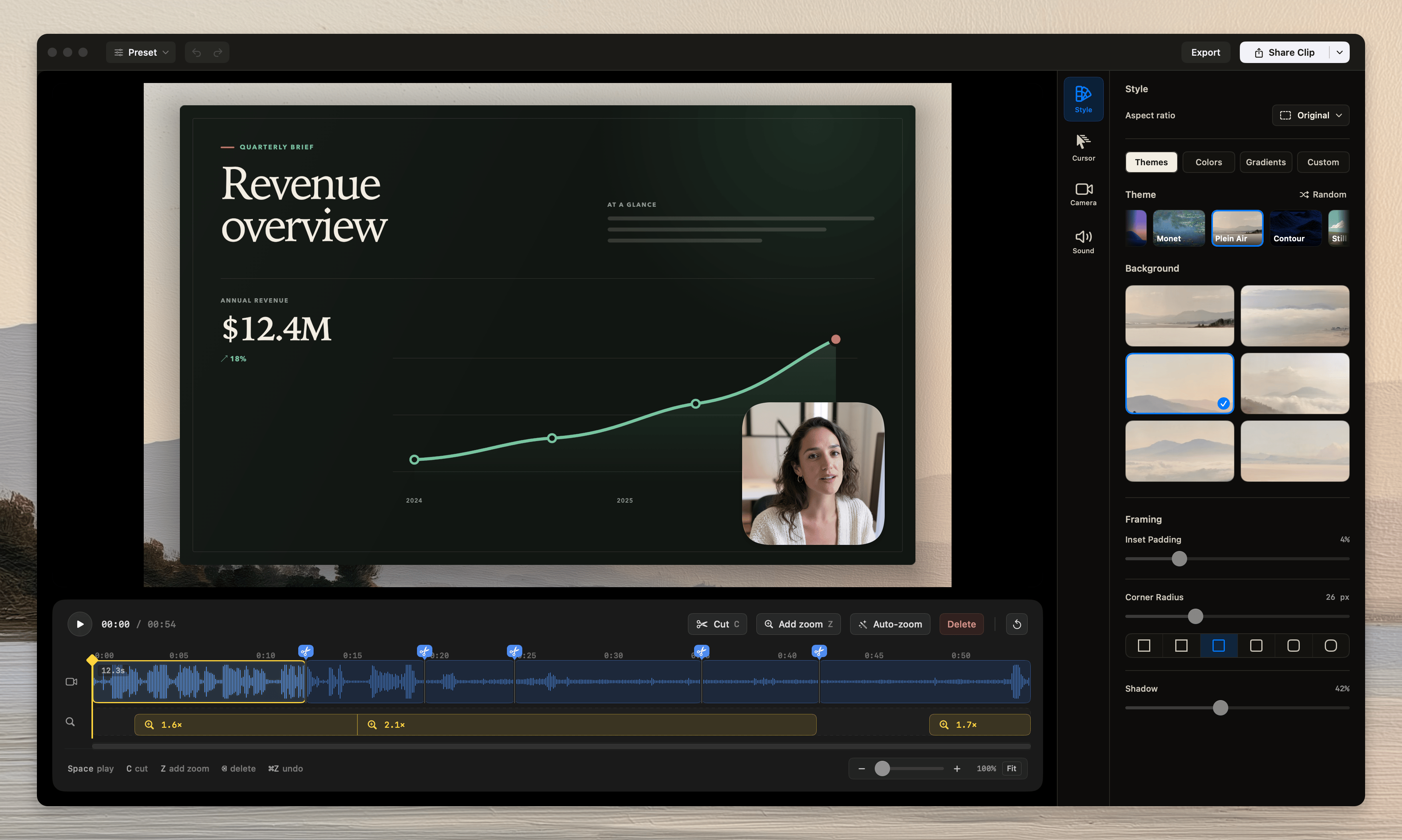
The Tellclip editor with the Themes browser open
The Monet backgrounds are public-domain works from the Art Institute of Chicago. Use the information button to view attribution details.

Use a color

In Style → Colors, select a color tile.
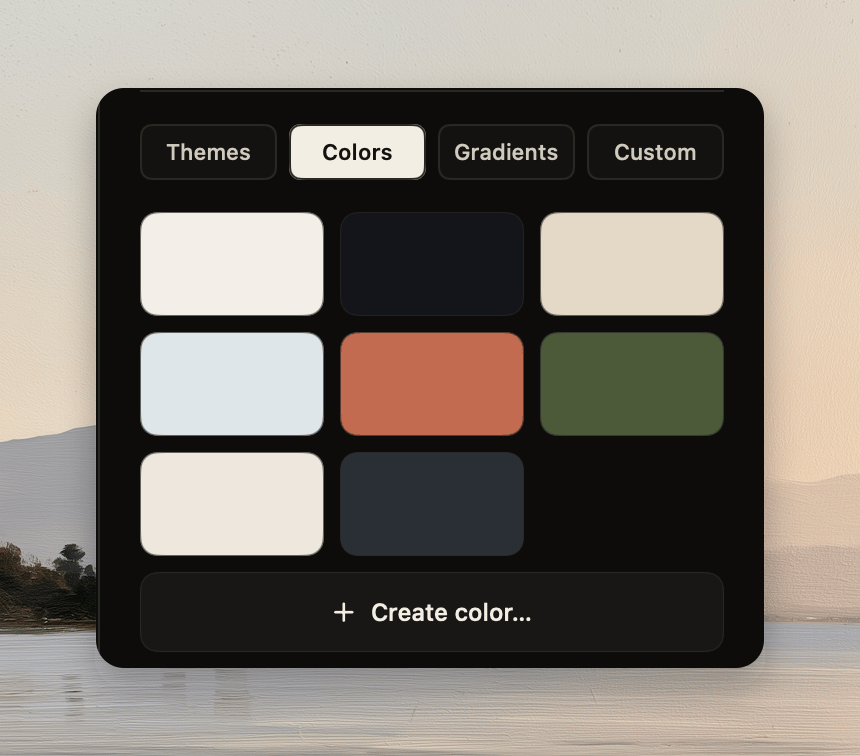
The Colors palette with preset tiles and Create color
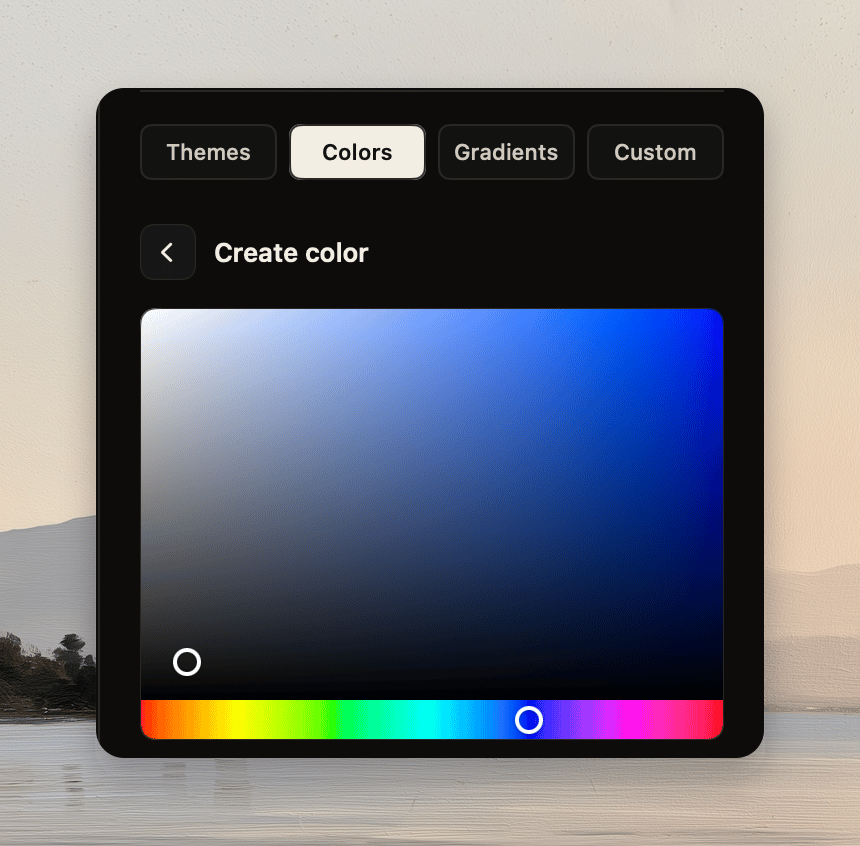
For a custom color, click Create color…. Choose a color, then click Back. Tellclip saves color changes immediately.
The custom color picker with saturation, brightness, and hue controls

Use a gradient

In Style → Gradients, select a gradient tile. To create your own, click Create gradient…. Set the Start and End colors, then adjust Angle.
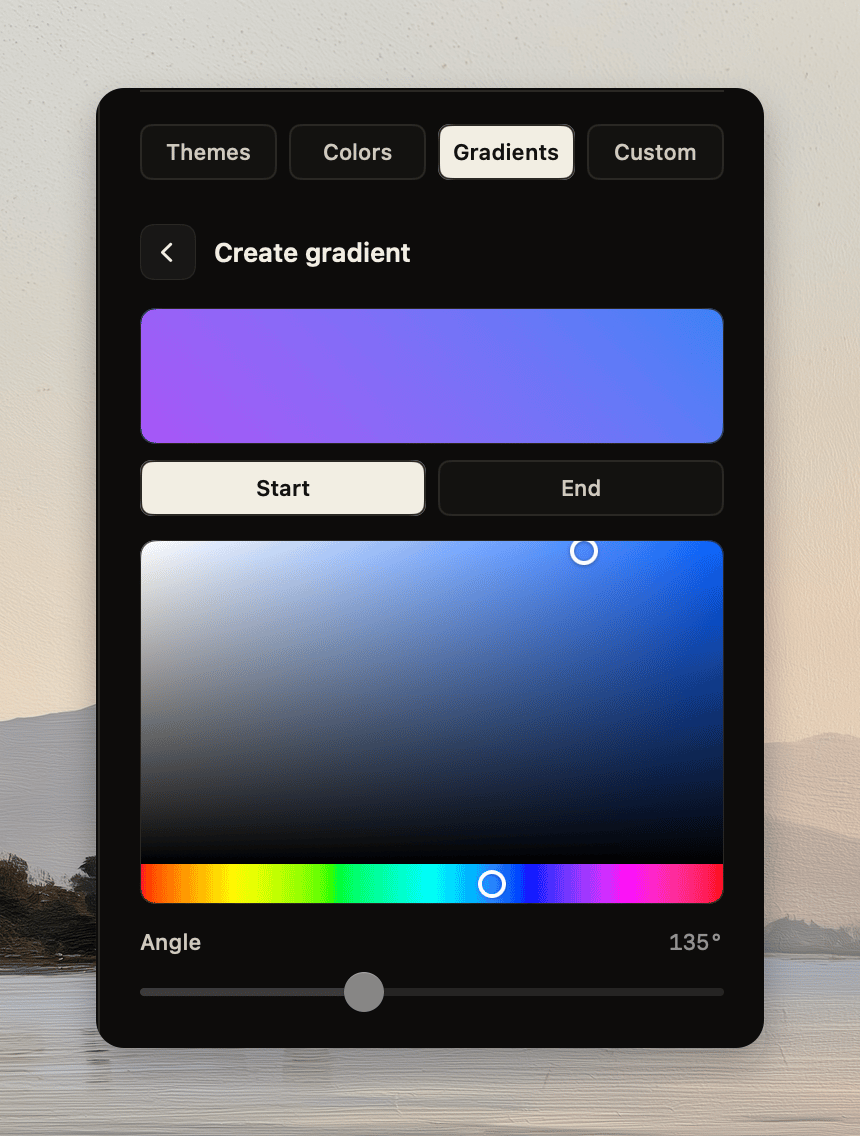
Create gradient with Start and End colors and the Angle slider

Use a mesh

In Style → Gradients, click Random mesh. Click Save or Save to palette to keep the mesh before generating another one.
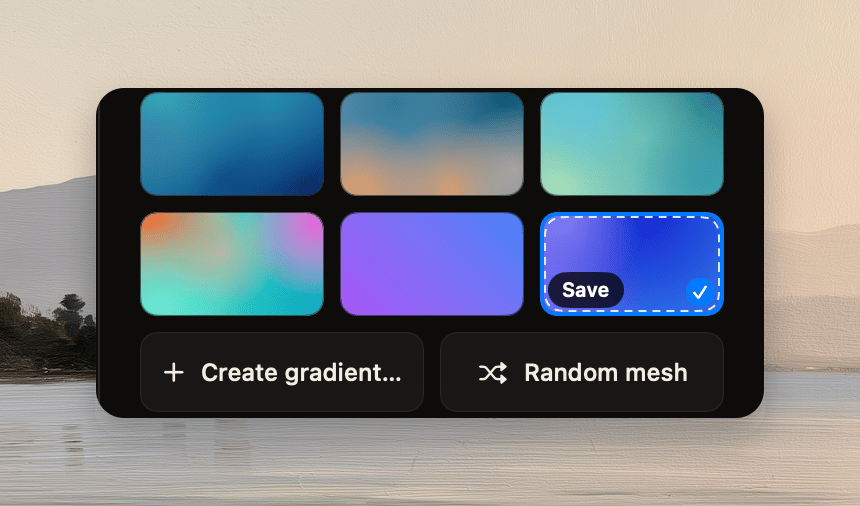
An unsaved mesh tile with Save and Random mesh controls

Use an image

1

Open Custom

Select Custom.
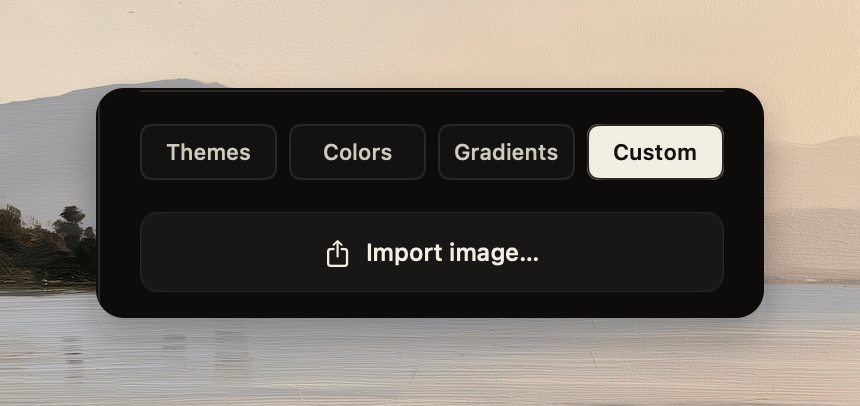
The Custom tab with the Import image button
2

Import the image

Click Import image…. Choose an image file.
3

Select the image

Click the image tile under Your images.
The selected background fills the clip canvas. Saved items remain available in their matching panels.

Common errors

Framing controls are unavailable

Select a background other than None. Framing requires a canvas around the recorded screen.

A random mesh is not in the palette

Click Save before you create another random mesh. The unsaved mesh uses a temporary slot.

A custom background disappears from a preset

Keep the custom background item in the palette. If its custom item no longer exists, a preset uses None.